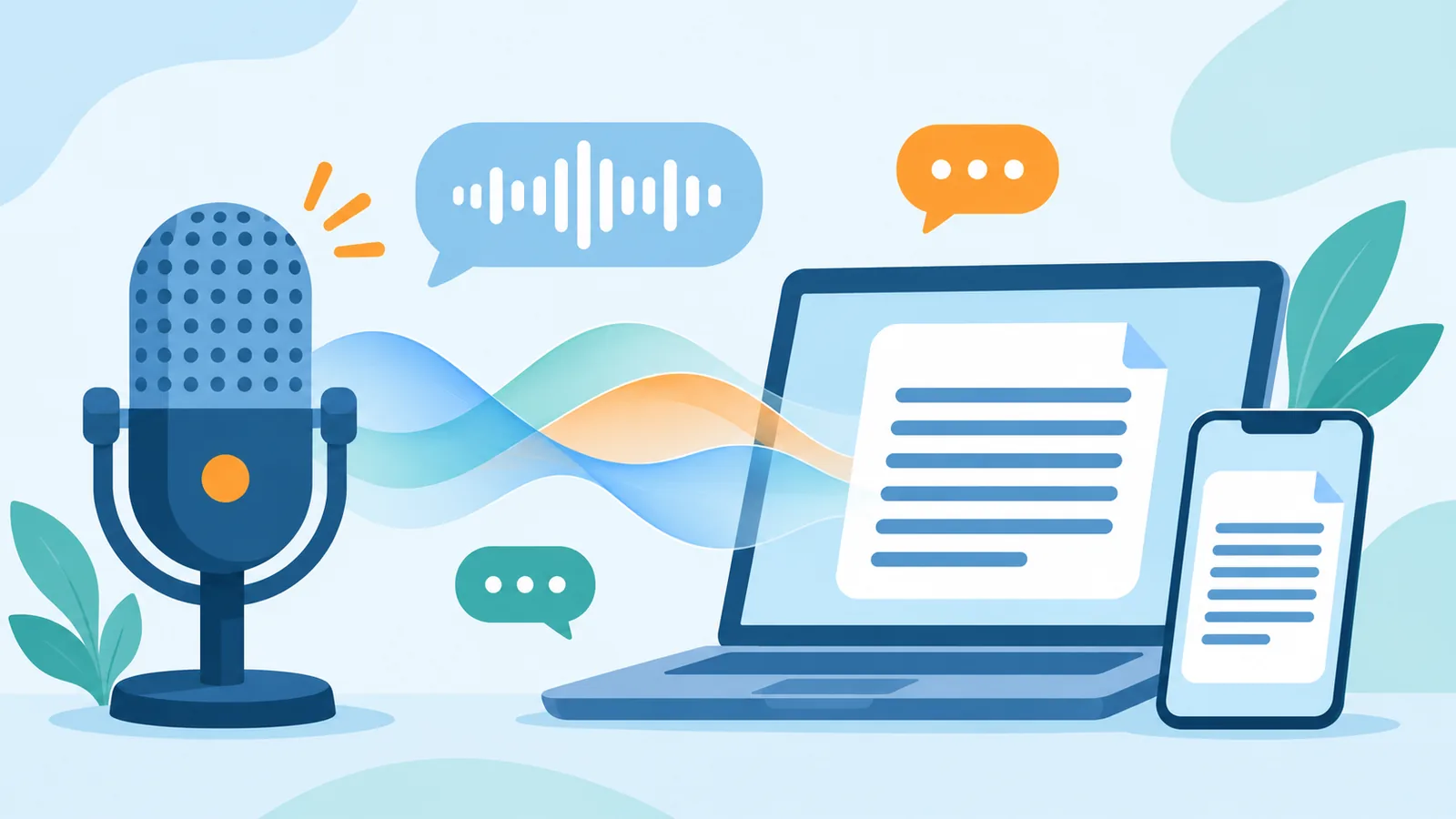
Typing everything by hand slows down rough drafts, class notes, and everyday emails. Modern speech to text tools turn spoken words into editable text in seconds, helping you draft faster or transcribe an audio recording.
This guide is for students, writers, busy professionals, people with RSI or limited hand mobility, and English learners who want practical dictation options. It covers seven dependable picks across browsers, desktop systems, phones, and professional setups.
Built-in voice to text dictation on your phone or laptop is often good enough for short notes and messages. Accuracy still depends heavily on your microphone, background noise, accent, and language setting, not only on the software you choose.
Quick Picks
- VoiceTyping.org: Best free browser tool for live dictation, custom commands, and local audio file transcription.
- Google Docs Voice Typing: Best built-in choice for drafting directly inside Google Docs on Chrome.
- Windows Voice Typing: Best system-wide shortcut (
Win+H) for any text box on Windows. - Apple Dictation: Best built-in option across macOS, iPhone, and iPad.
- Microsoft Word Dictate: Best choice for writing inside Microsoft 365 Word.
- Gboard Voice Typing: Best mobile keyboard option on Android phones.
- Dragon: Best paid desktop option for heavy dictation and custom vocabulary.
How We Chose
We evaluated each tool on three straightforward points: what it actually does in daily writing, how its cost model works, and who it suits best. A browser notepad, an operating-system shortcut, and paid desktop software solve different problems, so we focused on real workflow fit rather than feature checklists.
We also weighed setup effort, platform limits, internet requirements, punctuation commands, and audio file support. Each entry includes clear drawbacks so you can judge when a built-in tool is plenty and when something more specialized makes sense.
1. VoiceTyping.org
VoiceTyping.org offers free speech to text online in your browser with no sign-up, download, or paid tier. Press Start and talk to watch words appear in an editable notepad saved in your browser, ready to copy, download, print, or share. A separate Transcribe Audio File tool turns MP3, WAV, or M4A recordings into timestamped text exportable as TXT or SRT, processing the audio in your browser without uploading it.
Best for: Desktop and Android Chrome users wanting free browser dictation and local audio file transcription with no account.
Pros:
- Offers 50+ language and accent options (such as US, UK, Australian, and Indian English) so matching your regional variant improves results, plus spoken punctuation commands ("comma", "period", "new paragraph") that you can edit or expand with your own commands.
- Combines live voice typing, browser-saved notes, and local MP3, WAV, or M4A transcription in one workspace.
- States that it never reads, stores, or sells the text you dictate; depending on browser and device, live speech is recognized on-device, by the browser vendor's speech service, or by its own speech service.
Cons:
- Browser-dependent: real availability depends on browser speech recognition, Chrome and Edge work best, most browsers need an internet connection, and on iPhone or iPad the keyboard microphone is usually easier.
- Newer and less well known, with no custom vocabulary training and no team or meeting features.
Pricing: Free, with no sign-up and no paid tier.
2. Google Docs Voice Typing
Google Docs Voice Typing is built into Google Docs in Chrome under Tools > Voice typing. Click the microphone to speak directly into your document using basic punctuation and formatting commands. It fits naturally if your drafts already live in Google Docs.
Best for: Students and writers already drafting inside Google Docs on Chrome.
Pros:
- Ready inside Google Docs in Chrome with no extra install.
- Keeps voice drafts in your formatted, cloud-saved document.
- Supports routine spoken punctuation and basic editing commands.
Cons:
- Limited to Google Docs in Chrome, not other websites or desktop apps.
- Requires an internet connection and cannot transcribe pre-recorded audio files.
Pricing: Included with Google Docs; check the official site for current account options.
3. Windows Voice Typing
Windows Voice Typing is built into Windows and opens in any text box with Win+H. Because it works at the system level, you can dictate into emails, browsers, and desktop apps without switching windows. It also handles routine punctuation and simple edits.
Best for: Windows users wanting one system-wide voice to text shortcut across every app.
Pros:
- Opens in almost any Windows text box via
Win+H. - Pre-installed with Windows, with nothing extra to download.
- Handy for quick replies and notes across different programs.
Cons:
- Available on Windows only, with no built-in audio file transcription.
- Limited customization for technical terms or advanced editing workflows.
Pricing: Included with Windows at no extra cost.
4. Apple Dictation
Apple Dictation is built into macOS, iPhone, and iPad through the keyboard microphone on mobile or the dictation key on a Mac. Spoken text enters Mail, Notes, Messages, browsers, and most third-party apps with minimal setup. It handles everyday punctuation and lets you alternate between speaking and typing easily.
Best for: Mac, iPhone, and iPad users wanting built-in dictation across Apple devices.
Pros:
- Included on macOS, iPhone, and iPad without extra installs.
- Works in nearly any app accepting keyboard input, especially on mobile.
- Easy to mix spoken input with quick manual keyboard edits.
Cons:
- Apple devices only, with no Windows or Android version.
- Made for live dictation rather than transcribing recorded audio files or training custom vocabulary.
Pricing: Included with macOS, iOS, and iPadOS at no extra cost.
5. Microsoft Word Dictate
Microsoft Word Dictate adds a Dictate button directly inside Microsoft 365 Word. Click the microphone to speak into your document with standard punctuation and basic voice edits while keeping your layout intact. Offices and schools standardized on Word avoid extra copy-and-paste steps.
Best for: Professionals and students writing and formatting documents in Microsoft 365 Word.
Pros:
- Built into Word's toolbar, keeping text and styles in one file.
- Supports common spoken punctuation and basic editing commands.
- Fits schools and workplaces already using Microsoft 365.
Cons:
- Tied to Microsoft 365 Word rather than working across other desktop apps.
- Needs an internet connection and offers fewer custom commands than dedicated desktop dictation tools.
Pricing: Included with Microsoft 365 Word; check the official site for current subscription prices.
6. Gboard Voice Typing
Gboard Voice Typing runs from the microphone button on Android's Gboard keyboard. Because it lives in the keyboard itself, it works across texts, email, search bars, and notes whenever thumb typing slows you down. It focuses on quick mobile capture rather than formal formatting.
Best for: Android users dictating texts, reminders, and short emails on a phone.
Pros:
- Starts with one tap in nearly any Android app using Gboard.
- Fast for one-handed messages and quick thoughts on the go.
- Simple to polish with touch-keyboard edits right after speaking.
Cons:
- Built for mobile typing rather than long-form desktop drafting.
- Offers no audio file transcription or custom command sets.
Pricing: Included with Gboard on Android at no extra cost.
7. Dragon
Dragon is long-standing desktop speech to text software aimed at professionals who dictate heavily every day. Unlike lighter browser or OS options, it centers on custom vocabulary and voice commands for editing and hands-free navigation. People with RSI, limited hand mobility, or specialized legal and medical workloads often use it when basic dictation misses technical terms.
Best for: Heavy daily dictaters, specialized professionals, and users needing custom vocabulary and hands-free control.
Pros:
- Supports custom vocabulary so technical terms, acronyms, and names stay consistent.
- Provides broad voice commands for editing and navigating apps without a keyboard.
- Built for sustained, high-volume professional dictation.
Cons:
- Paid software costing more than free browser or built-in OS tools.
- Takes more installation, setup, and practice than a browser button or keyboard shortcut.
Pricing: Paid software; check the official site for current prices.
Comparison of the Best Speech to Text Tools
Here is how these seven options compare by platform, main focus, and cost model.
| Tool | Platform | Main Focus | Pricing |
|---|---|---|---|
| VoiceTyping.org | Browser (Chrome, Edge, Android Chrome) | Free notepad, custom commands, local audio transcription | Free |
| Google Docs Voice Typing | Google Docs in Chrome | Direct drafting inside Google Docs | Included with Google Docs |
| Windows Voice Typing | Windows (Win+H) | System-wide dictation in any text box | Included with Windows |
| Apple Dictation | macOS, iPhone, iPad | System-wide dictation on Apple devices | Included with Apple devices |
| Microsoft Word Dictate | Microsoft 365 Word | Direct dictation inside Word | Included with Microsoft 365 Word |
| Gboard Voice Typing | Android (Gboard) | Quick mobile keyboard dictation | Included with Gboard |
| Dragon | Desktop | Heavy dictation, custom vocabulary, voice commands | Paid; check official site |
How to Choose Between Speech to Text Tools
Start with what is already on your device. For quick emails and short notes, Windows Voice Typing, Apple Dictation, and Gboard Voice Typing are often good enough. If you write mainly inside one editor, Google Docs Voice Typing or Microsoft Word Dictate keeps everything together. Pick VoiceTyping.org for a free, no-account browser notepad with custom commands or local MP3, WAV, and M4A transcription. Paid desktop tools like Dragon make sense mainly for heavy daily dictation, specialized vocabulary, or hands-free navigation due to RSI or limited hand mobility.
If you want voice typing inside any web text box plus read-aloud playback for proofreading what you dictated, Utterflow covers both in one place. It is a Chrome extension that reads web pages, AI chat replies, X posts, and Gmail aloud with natural voices and word-by-word highlighting, and it also includes a microphone button for voice typing in any text box on a page. It is free to try and has a paid Pro plan; check the site for current plans.
Before switching apps over missed words, check your recording environment. Accuracy depends on your microphone, background noise, accent, and language choice. Speaking clearly at a steady pace in a quiet room—ideally close to a headset or desk microphone—usually helps more than changing tools.
English learners can also treat live dictation as a quick check of whether their pronunciation is understood: read a short passage aloud and note which words come out wrong. If dictation keeps mishearing certain words, Accent Guess can estimate which accent profile your speech sounds closest to and show which sounds to practice. That simple check turns everyday speaking into focused pronunciation work.
FAQ
Are free speech to text tools accurate enough for everyday writing?
Yes. For emails, class notes, and rough drafts, free browser tools and built-in dictation perform well in a quiet room. Plan on a brief editing pass for punctuation, homophones, and uncommon names.
What is the easiest way to use speech to text online without installing software?
Open VoiceTyping.org in Chrome or Edge, select your language and regional variant, and press Start. With no download or account needed, you can dictate and export text right away.
Can built-in dictation transcribe an audio recording?
Usually no. Operating-system shortcuts and mobile keyboards handle live microphone input rather than saved recordings. For MP3, WAV, or M4A files, VoiceTyping.org provides a separate Transcribe Audio File tool that runs in the browser and exports TXT or SRT with timestamps.
Why do speech to text tools miss words even when I speak clearly?
Accuracy depends on microphone pickup, background noise, room echo, accent, and language settings. Choosing the closest regional variant—such as US, UK, Australian, or Indian English—and speaking close to your microphone in a quiet room fixes many repeat errors.
When is paid speech to text software worth buying?
Paid desktop tools like Dragon make sense if you dictate for hours every day, rely on hands-free control for RSI or limited hand mobility, or use specialized legal, medical, or technical vocabulary. For occasional emails and notes, free tools are usually enough.
Conclusion
Most people do not need paid software right away to get useful results from speech to text tools. Start with the dictation built into your device for quick notes, or open VoiceTyping.org in Chrome or Edge for a free browser notepad with custom commands and local audio transcription. Upgrade to paid desktop software only if daily volume, specialized jargon, or hands-free navigation makes the extra setup worthwhile.